Uninstall NEON
1. First, you need to remove the snippet that you paste in your theme.liquid. Ctrl + F this query neon-stock-info-widget and remove the whole div class.
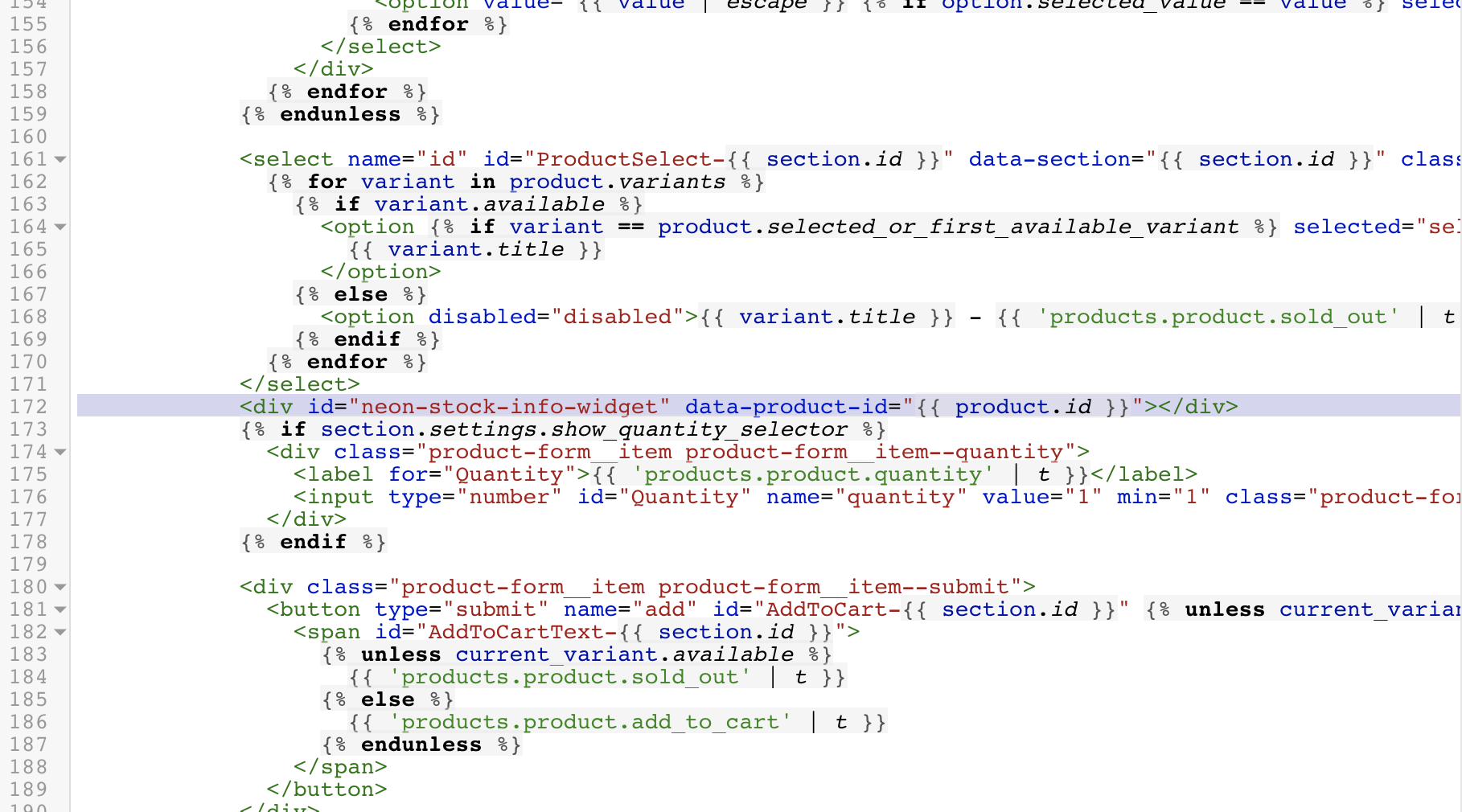
NOTE: Please remove the above snippet of code in order to remove the app completely, prior to uninstalling the app.
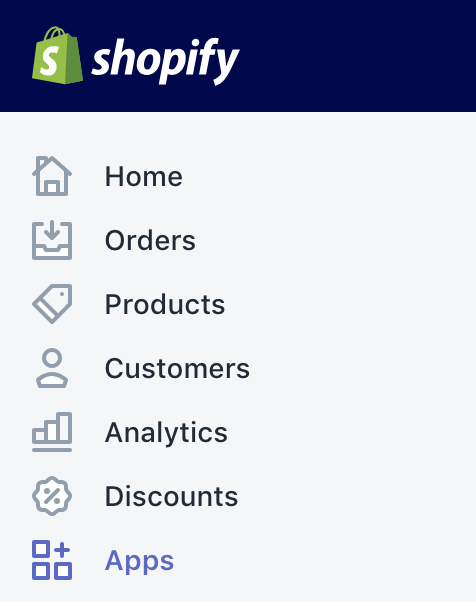
2. Starting from your Shopify admin dashboard, click on the Apps tab.
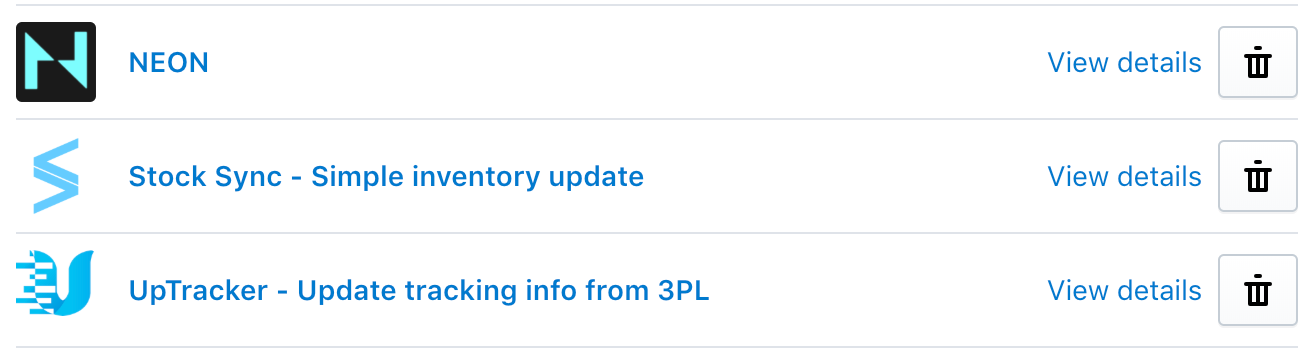
3. Locate NEON, then click on the Trash icon next to it.
4. Click Uninstall. You may leave us any feedback as to why you're uninstalling NEON as well.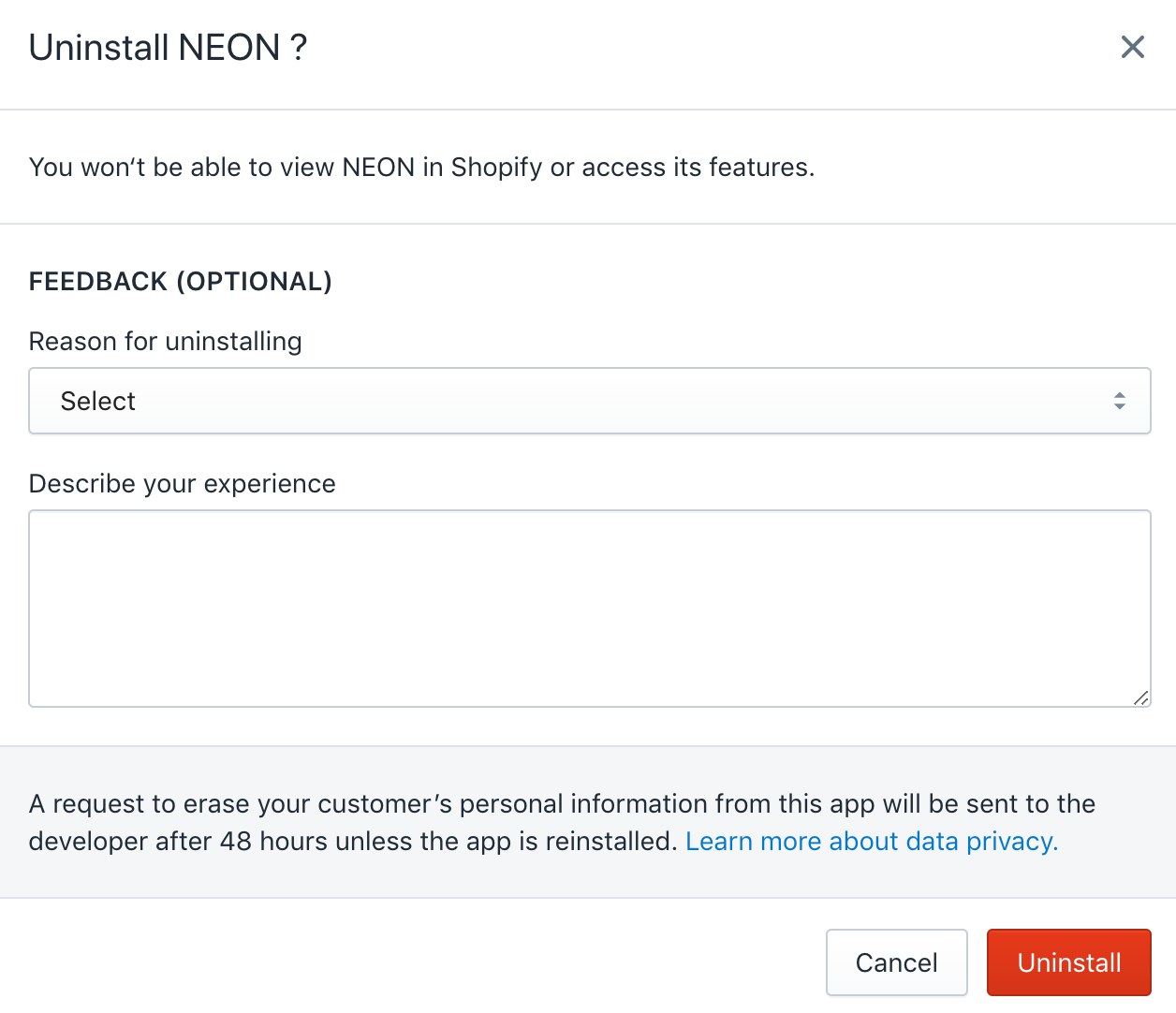
Related Articles
Welcome to NEON
NEON allows you to display sold count on your products' page. This will increase your customers' confidence to buy your product. NEON has a very simple dashboard where you will be able to do everything from loading order/s to configuring the NEON ...Embedding the NEON code
Before you can start using the NEON tag on your online store, you need to embed the code which you can from your NEON dashboard. Embedding the code on the product page. 1. Start by copying the code snippet provided. <div id="neon-stock-info-widget" ...NEON Privacy Policy
NEON Privacy Policy NEON "the App” provides sold count to increase conversion rate "the Service" to merchants who use Shopify to power their stores. This Privacy Policy describes how personal information is collected, used, and shared when you ...Adding the code to Collection page or product grid
This feature only works if you have upgraded NEON to the basic plan. Simply copy the Collection code available in NEON and paste it in the product-card-grid.liquid file. For more information, we have list out the possible liquid file if it's not in ...Need help inserting code for you?
If you ever need help inserting the code for you, please follow these step: 1. Create a staff account for neon@stock-sync.com with Themes permission 2. Contact support through email or create a ticket and request where you want to put the tag on your ...