Pausing/ Deactivating Tests?
Click the gear icon of a running test to find the “Pause/Deactivate” option:
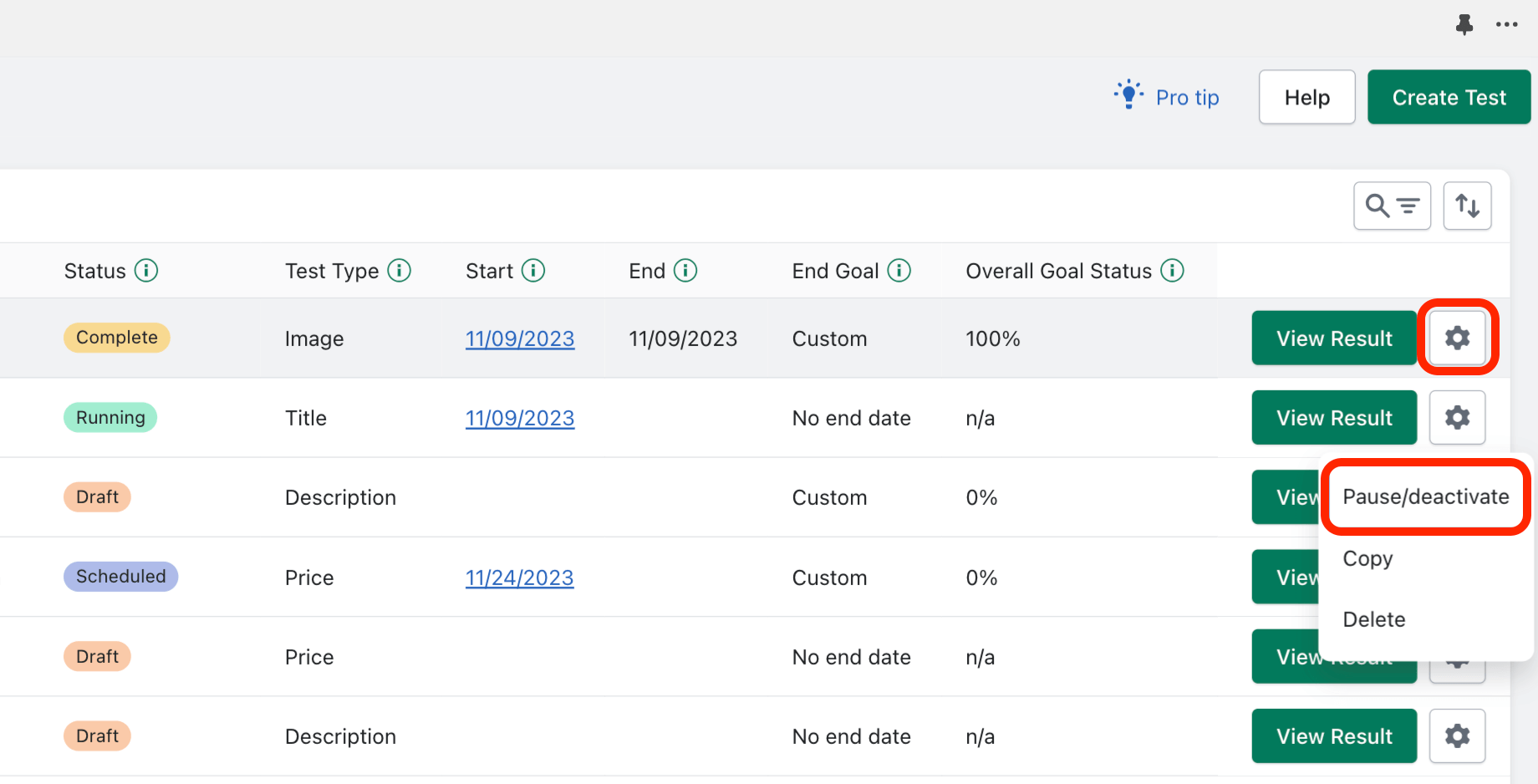
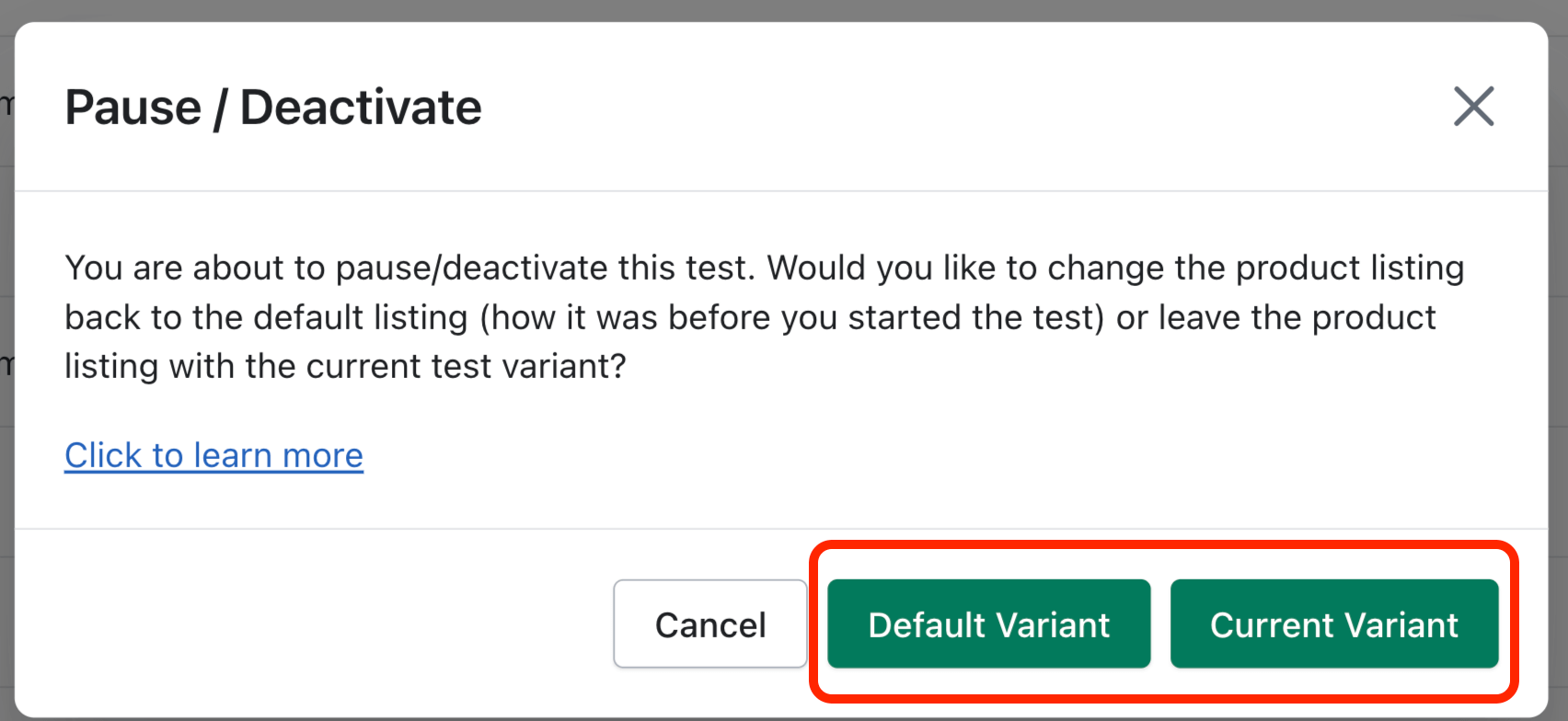
Pausing a test causes the test to indefinitely stop cycling through test variants and we will stop collecting data for the test. To pause the test, you will need to tell our app if we should revert the test variable back to how it was when you started the test (Default Variant), or if you would like to leave the current test variant in place (Current Variant):
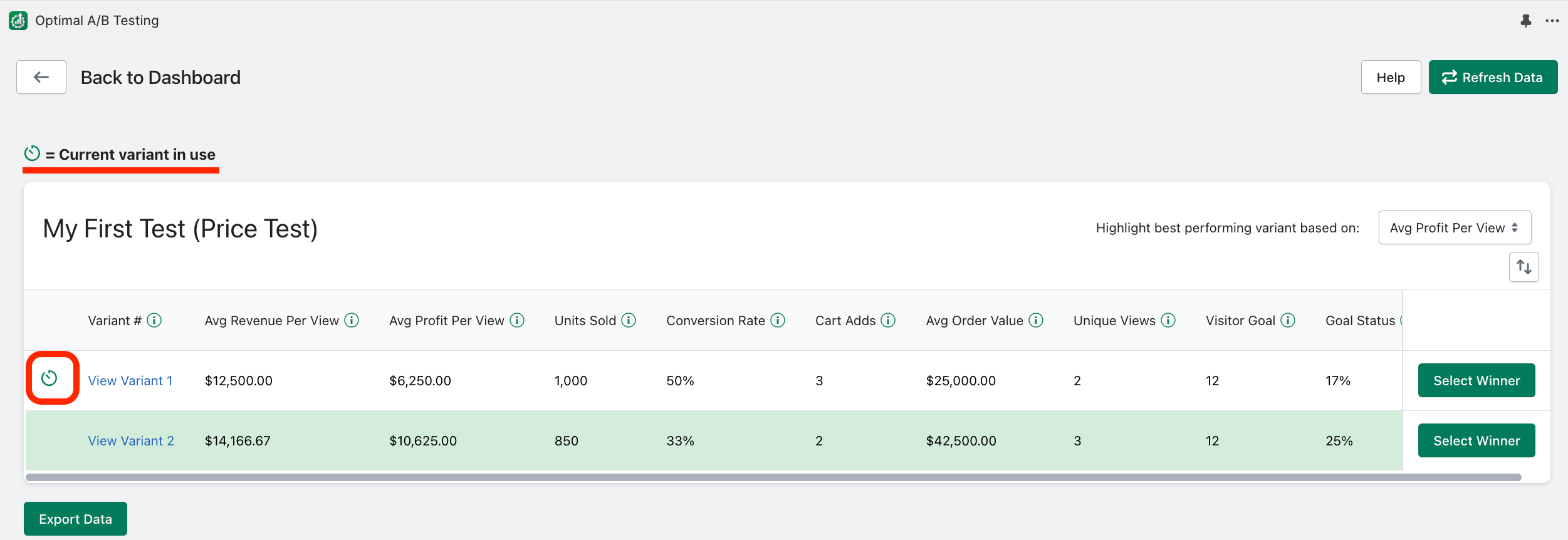
You can quickly tell which variant is currently in use by this indicator:
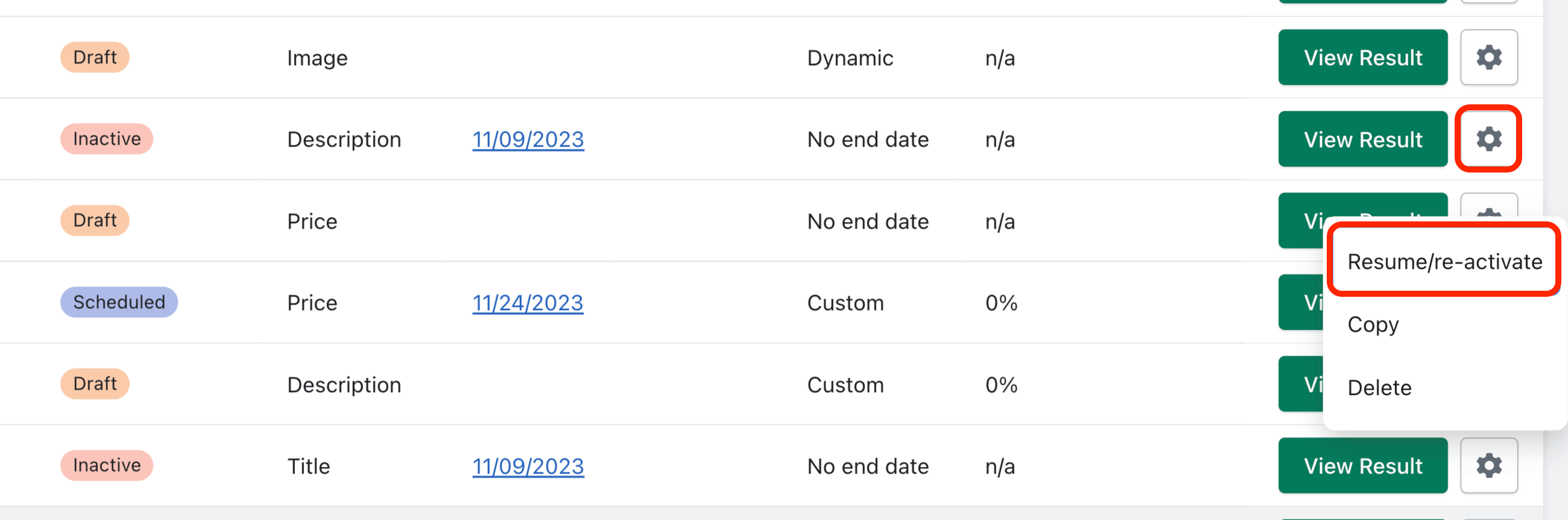
To re-activate a test, click the gear icon and select “Resume/re-activate”:
Related Articles
How do I "Edit" tests?
You can only edit tests that have not started running yet (apart from the test name). This would include tests with a status of “Draft” and tests with a status of “Scheduled”. To edit a test, you will find the option under the gear icon: Can I "Re-activate" tests?
You can only “Resume/re-activate” tests that have not reached their visitor goal yet. Re-activating a test will cause it to resume cycling through your test variants and we will start collecting data again for each test variant. Click the gear icon ...Naming tests and selecting products?
Naming Tests: Creating a descriptive name for your A/B test will help ensure you will be able to quickly identify key elements of the test at a quick glance. Customers will not see the test name; its only purpose is to assist you in keeping track of ...What are Custom Parameter End Goal tests?
Custom Parameter tests allow you to fine tune the following variables below so that you can pinpoint the exact sample size (visitor goal) which each variant must achieve for the test to become complete: Can I edit A/B tests?
Only “Draft” and “Scheduled” status tests can be edited by clicking on the gear icon from the Dashboard page: If a test has already started running, you can press the “Copy” button instead: