Using SKU instead of barcode to update stock level
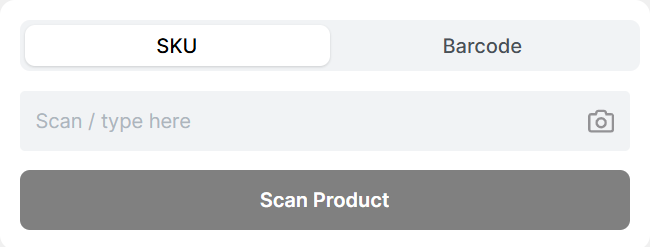
You can choose to update stock levels using either the SKU or the barcode, as syncX: SKU & Barcode Scan supports both identifiers.
Please note that each transaction is processed individually, regardless of the identifier used.
Note: The default identifier (SKU or barcode) will automatically be set based on the most recent transaction.
Related Articles
Change inventory location on syncX: SKU & Barcode Scan
syncX: SKU & Barcode Scan supports Shopify's multi-location feature, allowing you to update stock levels across different locations. Select the desired location from the dropdown menu in the top-right corner of the syncX page to apply stock updates ...Using your device as barcode scanner with syncX: SKU & Barcode Scan
Quick Scan now includes an in-app barcode scanner, allowing you to use your device’s camera to scan product barcodes directly. This feature is supported on most desktop and mobile browsers. On iPads and iPhones, the in-app scanner is currently only ...How to use syncX: SKU & Barcode Scan available shortcuts?
syncX: SKU & Barcode Scan now supports shortcut keys! You no longer need to manually select the update method or quantity each time you scan or input a barcode. Available Shortcut Keys: + : Increment - : Decrement = : Set Quantity How to Use: Enter ...How to use a barcode scanner with syncX: SKU & Barcode Scan?
syncX: SKU & Barcode Scan is compatible with all standard barcode scanners. To begin using a scanner with Quick Scan, simply follow these steps: Connect your barcode scanner to your PC or laptop via USB or Bluetooth. Ensure your scanner is properly ...Check your barcode scanner compatibility with syncX: SKU & Barcode Scan
If your barcode scanner isn’t working with syncX: SKU & Barcode Scan, it’s likely due to improper configuration. To test your scanner, follow these steps: Open Notes (Mac) or Notepad (Windows) on your computer. Use your scanner to scan any physical ...