Set up Advanced Settings
Advanced settings include order filtering, order information updates, file format configuration, order duration settings, and find/replace functionality.
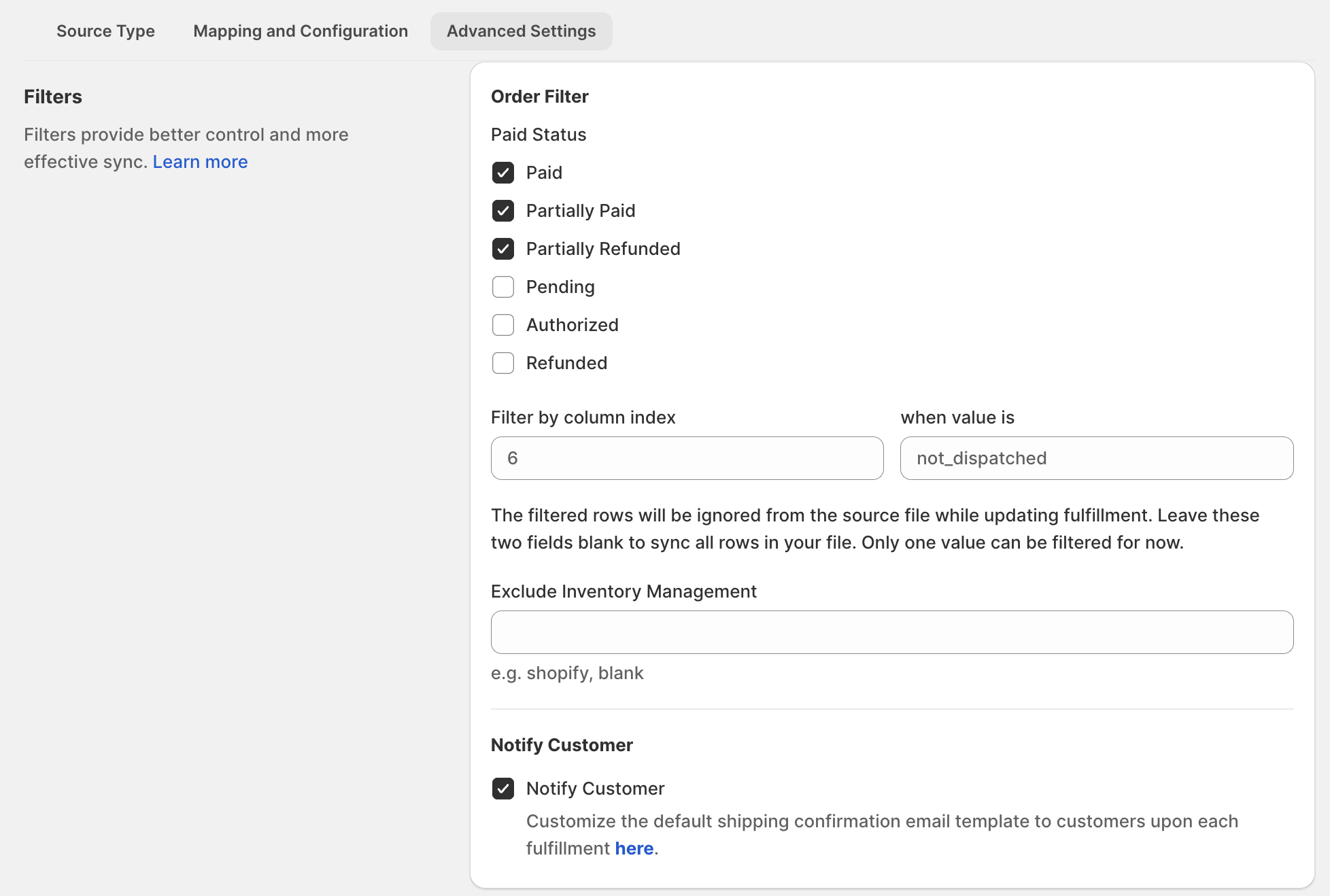
- Paid status
Select the desired paid status to filter orders accordingly. - Filter by column index
Specify a column index and value to exclude specific rows from the source file during fulfillment updates. Leave both fields blank to sync all rows. - Notify customer
Enable customer notifications for shipping confirmation emails when using a customized template. Click here to customize the template.
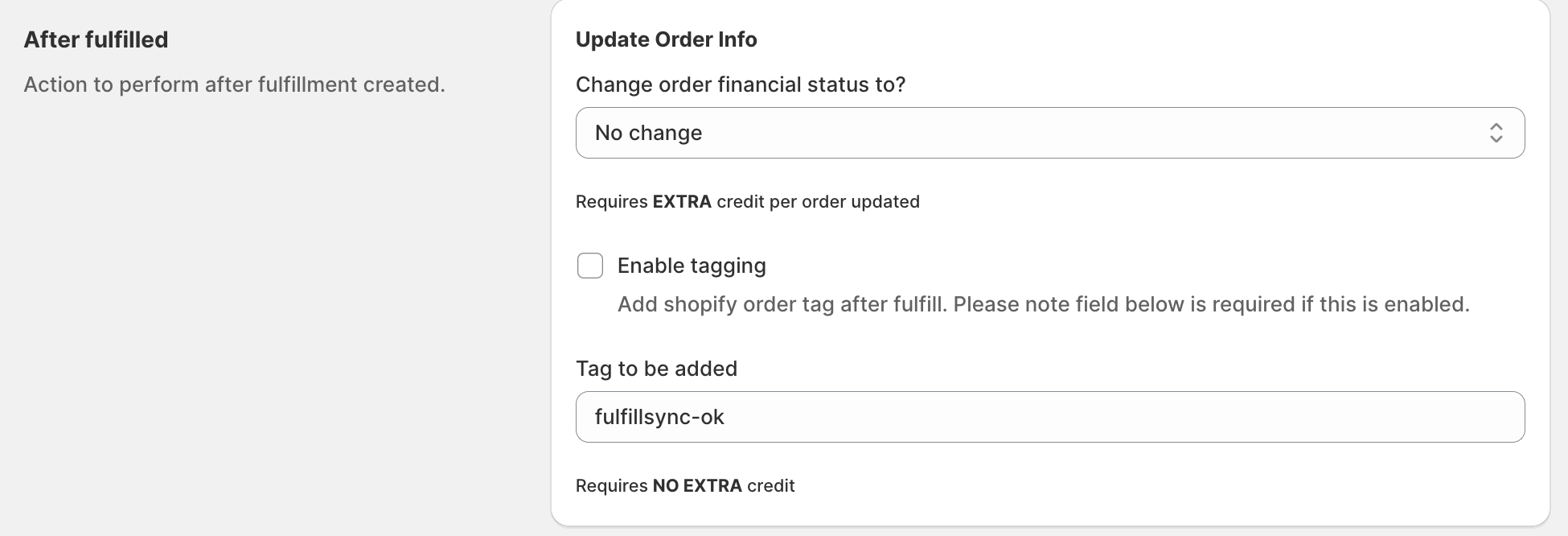
Change order financial status to
Financial status can be changed to no change, paid, closed, or archived. Required EXTRA credit per order has been updated.Enable tagging
Shopify order tags can be added upon fulfillment. If enabled, the field below is required; specify your desired tag. No additional credits are required.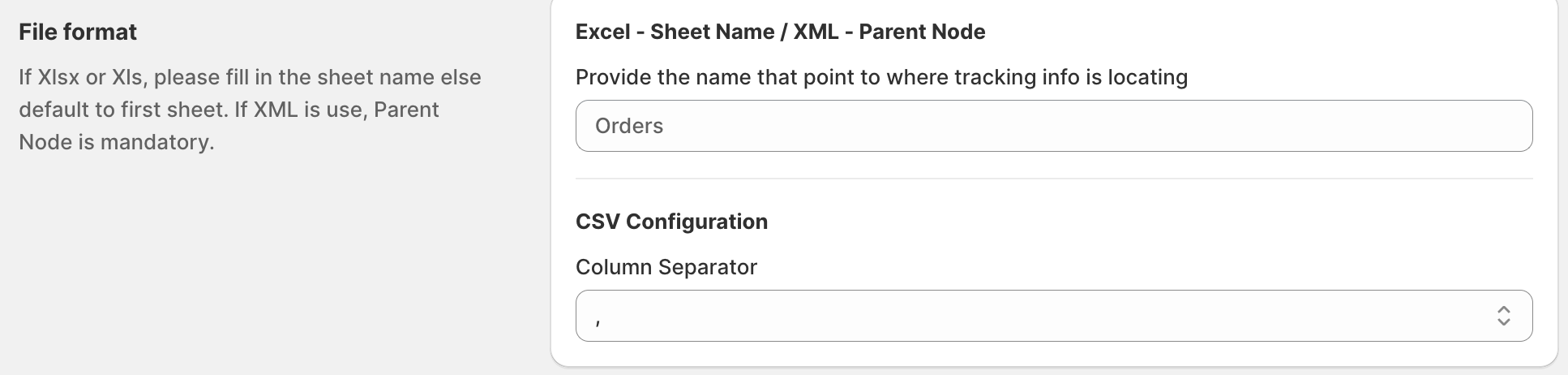
Provide the name that point to where tracking info is locating
If the XLSX or XLS, please fill in the sheet name, else default to the first sheet. When using XML, the Parent Node is required.CSV Configuration
Choose the accurate column separator based on the file that you provided.
Set order duration
You can fulfill or update orders from the last 14, 30, 90, or 180 days.
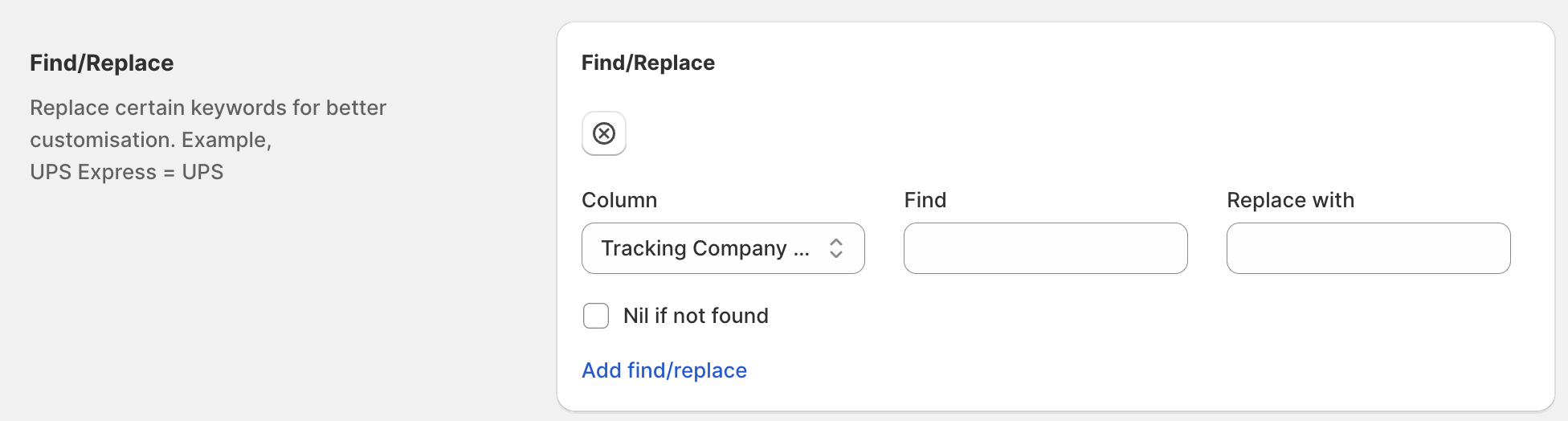
Find/Replace
Use the find and replace field to customize updates by replacing keywords in a chosen column. Ensure the feed file contains the values to be found.
Example,UPS Express = UPS
Related Articles
Set up Mapping and Configuration
First and most necessary step is to recognise your order by any of these: Mapping can be matched using your column number or index. Note that the column number starts at 0 (see the sample file attached below). Next, you can update your tracking ...Set up Source Type
syncX: Fulfill Tracking supports 6 types of Source Type as follows. You can choose any one of these Source Type: 1. FTP 2. FTP TSL 3. SFTP 4. Direct Link (URL) 5. File upload 6. Receive Email For this example, we will choose the File Upload. But if ...Fulfillment Tracking Visibility
Control when tracking updates become visible to customers based on each carrier's shipment status. This feature allows you to delay fulfilment updates until a shipment reaches a specific tracking. When Fulfillment Tracking Visibility is enabled: ...Schedule
Scheduling is available for all connection methods except file uploads. To enable scheduling, click the enable button and set your preferred time.Preferences
Notification email Provide the email that you would like to receive the notification, it supports multiple emails, separated by a comma. eg "abc@123.com, b2b.com" Email subscriptions Choose the subscriptions that you would like to enable to receive ...