Set up Source Type
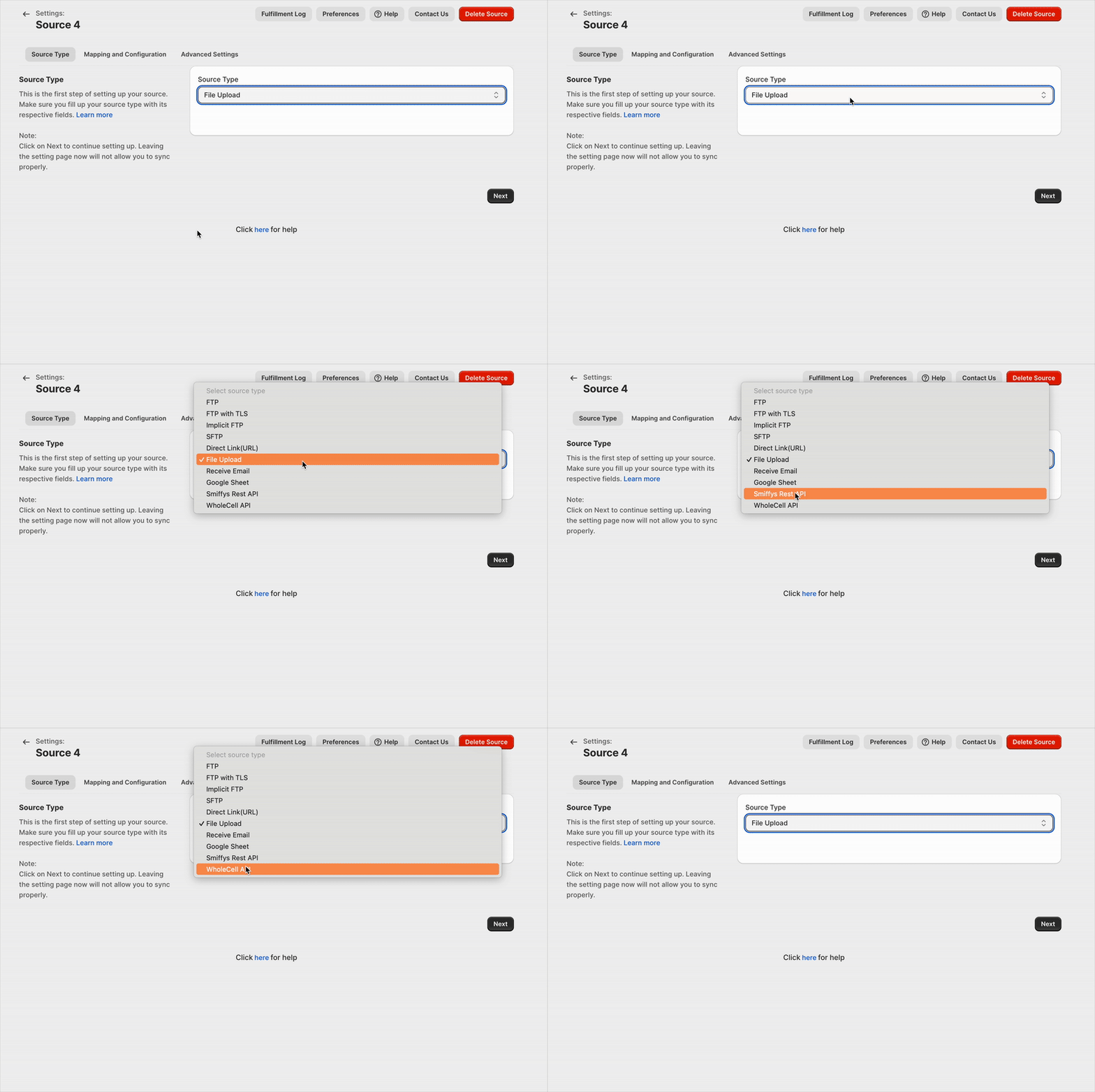
syncX: Fulfill Tracking supports 6 types of Source Type as follows.
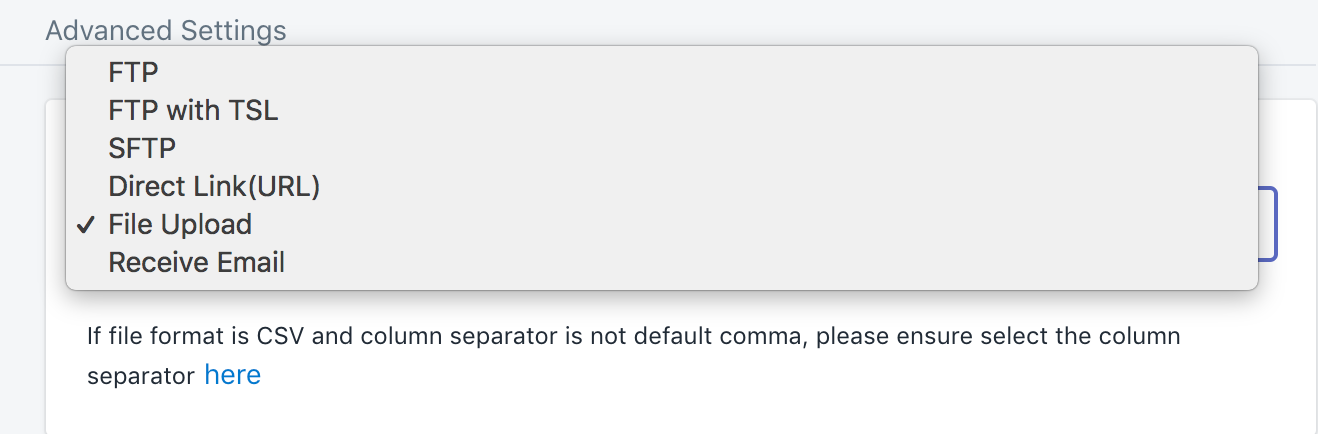
You can choose any one of these Source Type:
1. FTP
2. FTP TSL
3. SFTP
4. Direct Link (URL)
5. File upload
6. Receive Email
For this example, we will choose the File Upload. But if you chose FTP or any other source type, you will need to fill in the fields.
- Provide your host, for example, ftp.vendor.com
- Provide username and password if required
- Provide the path of the file that you want to sync.
- You can choose to rename your file after the process.
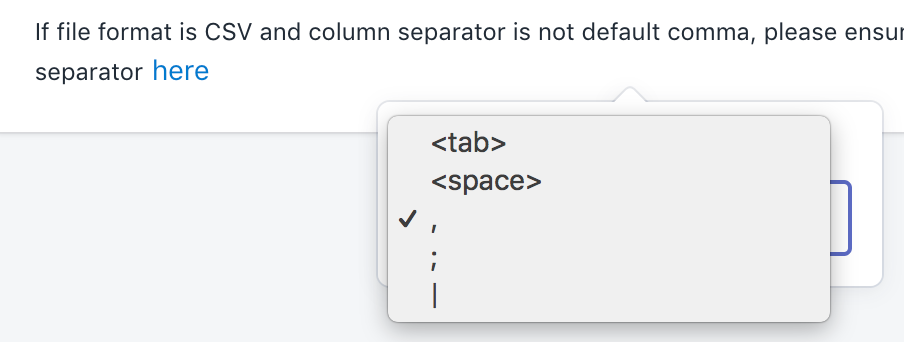
Next, you need to choose the column separator if the default is not a comma.
Related Articles
Set up Advanced Settings
Advanced settings include order filtering, order information updates, file format configuration, order duration settings, and find/replace functionality. Paid status Select the desired paid status to filter orders accordingly. Filter by column index ...How to create New source?
Begin by clicking the New source. From the available options, you can select a logistics template that aligns with your requirements to start the process. Click on "Create" to proceed with your chosen logistics template. After creating the template, ...Set up Mapping and Configuration
First and most necessary step is to recognise your order by any of these: Mapping can be matched using your column number or index. Note that the column number starts at 0 (see the sample file attached below). Next, you can update your tracking ...What does these errors mean?
Whenever the process failed, you would see these errors. But what do they mean? Let's find out: 1. No data retrieved from the source. The source you are trying to connect to does not have any file that Fulfil Sync can process. Please ensure your ...Schedule
Scheduling is available for all connection methods except file uploads. To enable scheduling, click the enable button and set your preferred time.